Native bulk actions or a previewed BulkSafe edit?
For a straightforward selection, Shopify has built-in bulk tag actions: select products on the Products page, open the actions menu, choose Add tags or Remove tags, select the tags and save. The official Shopify tag guide explains the native workflow.
BulkSafe adds a saved preview, an operation result and manual undo for confirmed changes. It is useful when you want to combine product filters and review the exact changes before applying. It works on product tags, not customer or order tags.
Scroll sideways to see every column.
| Your task | A practical starting point |
|---|---|
| Add several tags to an already selected handful of products | Shopify native bulk tag actions |
| Preview which filtered products need one tag added or removed | BulkSafe tag edit |
| Find a past tag edit and restore its confirmed changes | BulkSafe History, while saved history is available |
Use clear names such as summer-clearance and keep your naming consistent. Check whether a tag is used by a collection or another app before removing it.
Add or remove one tag with a saved preview.
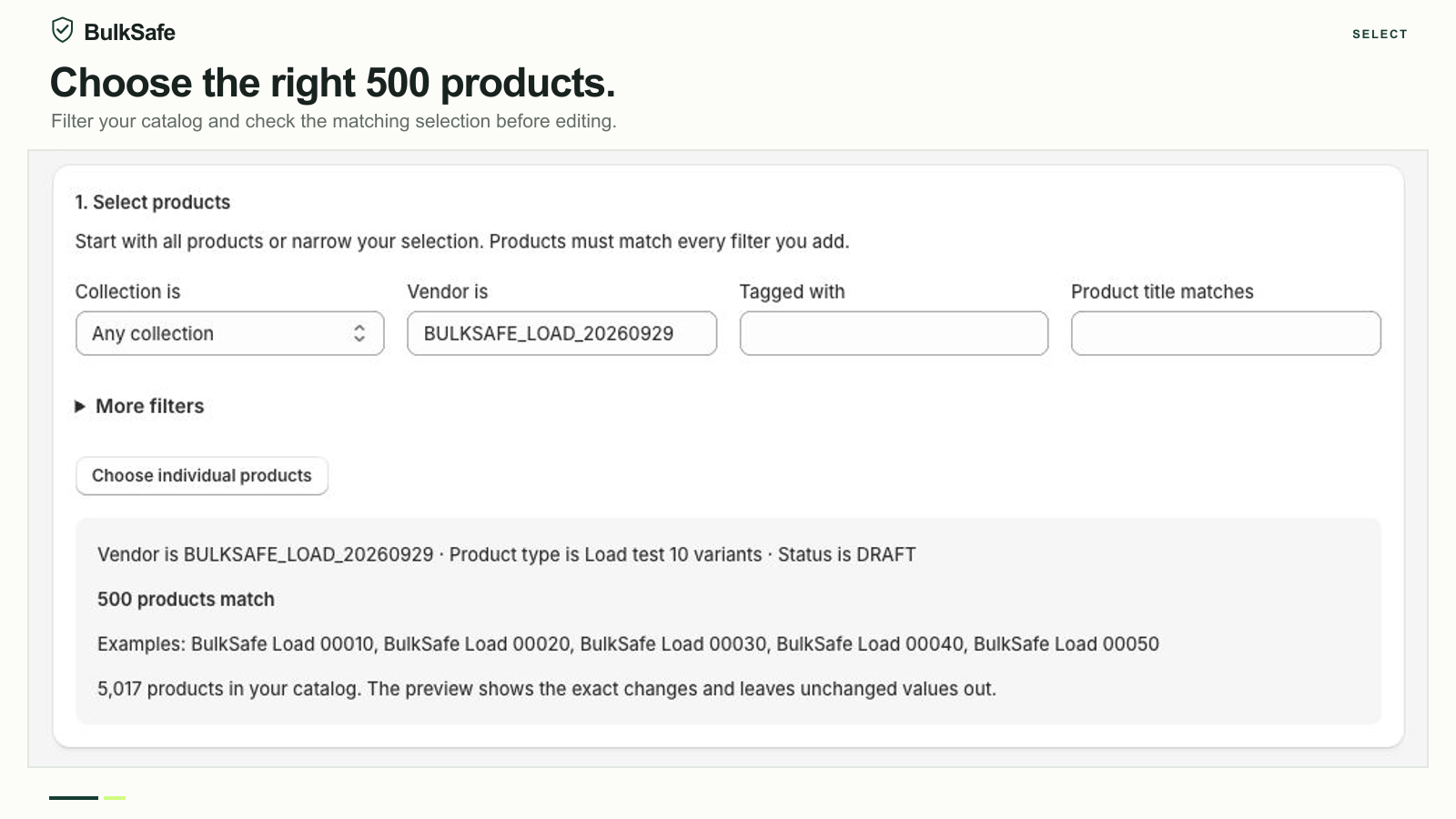
- Choose Add or remove tags in BulkSafe. Select the products you want to change. A vendor, collection, status or existing tag can narrow the group.
- Check the selection. Read the matching product count and sample products. Combining filters narrows the selection; make sure the group is not broader than intended.
- Select Add tag or Remove tag. Enter one tag, without commas. Each operation performs one tag action.
- Preview changes. Products that already have the tag do not need it added again. Products without a tag do not need that tag removed. Review the products that actually change.
- Apply and verify. Confirm the edit, inspect the result and check a few products in Shopify.
Scroll sideways to see every column.
| Product | Existing tags | Proposed result |
|---|---|---|
| Linen shirt | linen, summer | Keep both; add summer-clearance |
| Canvas bag | summer-clearance, accessories | No change needed |
| Cotton tee | basics | Keep basics; add summer-clearance |
BulkSafe adds or removes the selected tag rather than replacing the entire tag list. The examples above illustrate the behavior; your preview identifies the actual products in your store.
Replace a seasonal tag with two deliberate edits.
There is no combined rename-tag action. To replace summer-2026 with summer-clearance, first filter the intended products by the old tag and add the new one. Inspect the result before starting a second operation that removes the old tag.
If the first operation partly completes, do not remove the old tag from the entire original group. Identify which products received the new tag and resolve the remaining items first. You can review individual products in Shopify before making the next selection.
A tag change does not itself change prices. If you are preparing a promotion, use the tagged selection in a separate bulk price edit, and review the sale and compare-at price guide.
Check the result and keep the original operation handy.
Use a descriptive name such as “Add summer-clearance to draft linen products.” After applying, compare the successful and skipped counts with the preview. Check representative products and any collections that depend on the tag.
If the selection was wrong, open the operation in History and review its undo option. Manual undo restores confirmed changes where possible and reports detected newer edits or missing products. It does not replace a review of external automations triggered by tag changes.
Each changed product counts once per operation. The Free plan is suitable for a small first test; see current plan limits before a larger cleanup. If a result is unclear, contact support with the operation reference rather than repeatedly applying the same edit.
Try a small edit first.
Start with the free plan. Review your preview, apply the change and find the result in History.
Install on Shopify Need help? Contact support